
3 Hidden Wi-Fi Adapter Settings to Fix Slow or Disconnecting Wi-Fi Issues
Slow Wi-Fi or frequent disconnections can be really frustrating. This is especially true if you need an internet connection for work, meetings, or daily activities. When internet speeds drop, many people blame their internet service provider or router. However, the issue might be caused by settings within the computer’s Wi-Fi adapter configuration. Learning how to fix slow or disconnecting wifi issues starts with examining these ignored settings.
Modern laptops have wireless adapter settings. These settings control how the device talks to the router. They are hidden in Device Manager. Most users never change them. Sometimes, wrong settings can limit internet speed. Create unstable connections. The good news is that you can fix slow or disconnecting wifi issues by adjusting a setting.
In this post, we’ll look at three hidden Wi-Fi adapter settings. These settings can help fix slow or disconnecting wifi issues without needing knowledge or extra software
Common Signs Your Wi-Fi Adapter May Be Causing Issues
Before changing settings, check if your device is the problem.
- Your laptop’s Wi-Fi speed is slower than your phone’s.
- The internet regularly disconnects and reconnects.
- Video calls buffer or are slow.
- Downloads are slow with a strong Wi-Fi signal.
- You experience latency when browsing or streaming.
If these issues happen while other devices work fine, your adapter settings might need to be changed. Many people struggling with wi-fi difficulties don’t think their device settings could be the issue.
What is a Wi-Fi adapter? Why do settings matter?
A Wi-Fi adapter is a part of your computer that connects to wireless networks. It talks to your network. Manages data transfer.
Most adapters have settings to manage:
- Wireless performance
- Power usage
- Signal compatibility
- Network stability
The right settings can boost connection speed and eliminate interruptions. Working with it amc services in Dubai providers ensures all network parts are correctly set up.
Fix 1: Disable SMPS Mode to Increase Speed
SMPS (Spatial Multiplexing Power Save) saves power on laptops by limiting data streams during transmission.This helps extend battery life but might hurt internet performance. When enabled, the adapter limits throughput, leading to slower speeds. Disabling SMPS can help fix slow or disconnecting wifi issues on laptops.
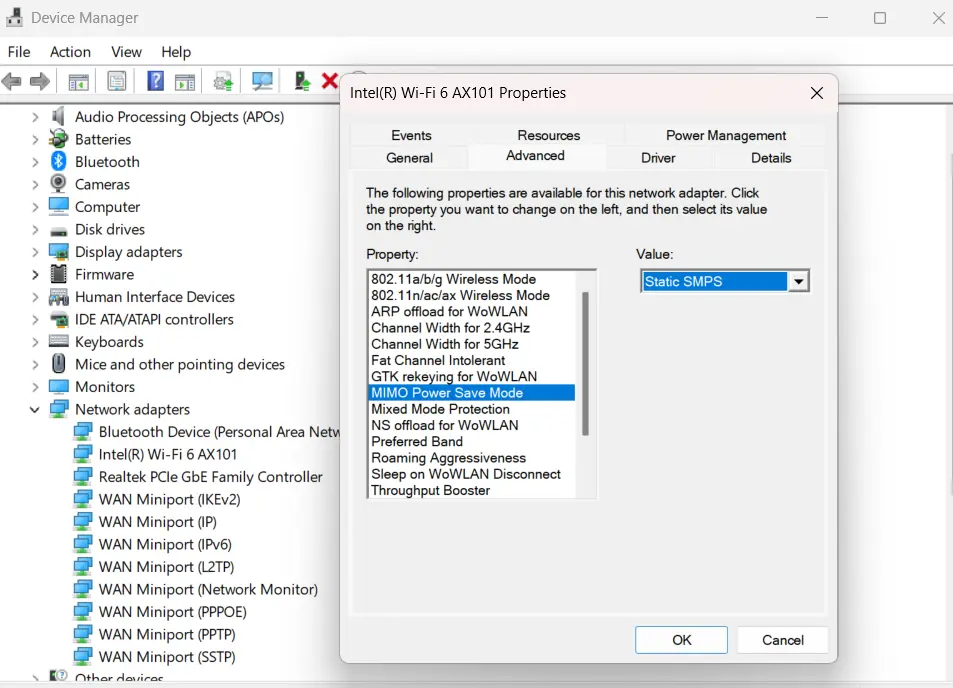
How to Disable SMPS Mode
- Open Device Manager.
- Expand Network Adapters.
- Right-click the Wi-Fi adapter.
- Select Properties > Advanced tab.
- Find SMPS Mode.
- Change the value to No SMPS.
- Click OK to restart.
After disabling the SMPS, your adapter will have wireless capability. If your office network continues to experience connectivity issues, consider contacting out it amc dubai for professional support.
Fix 2: Use RTS/CTS Protection to Reduce Disconnections
Another cause of Wi-Fi is interference from many devices on the same network. This is common in offices or crowded areas.
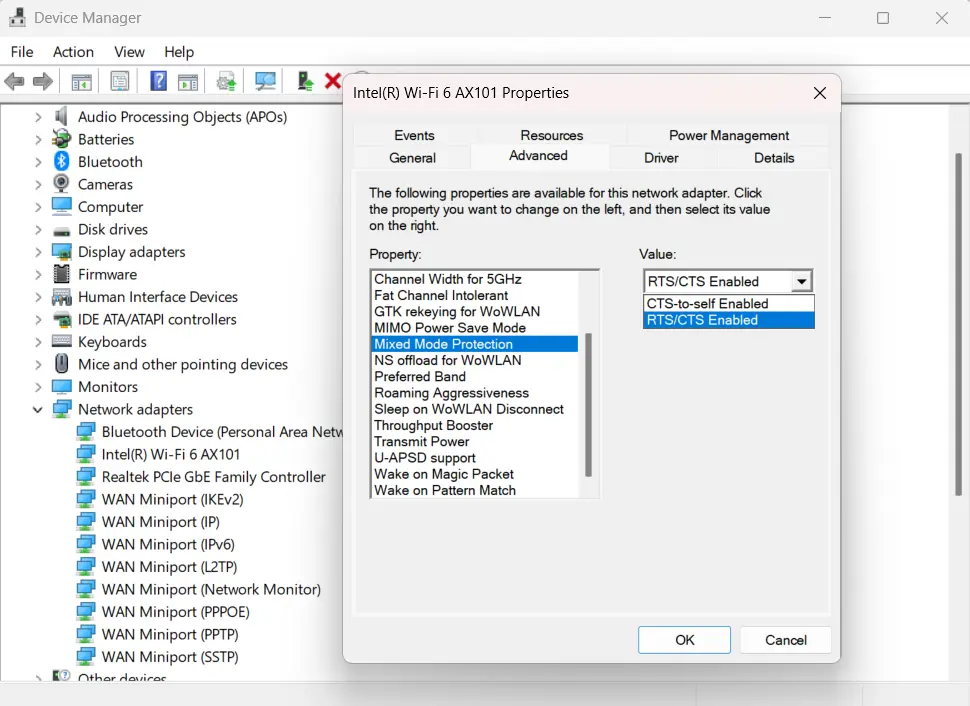
RTS (Request to Send) and CTS (Clear to Send) are protocols that reduce collisions between devices. Enabling this feature helps devices coordinate data transfer, minimizing packet loss and boosting stability.
This setting is especially helpful if you need to fix slow or disconnecting wifi issues in crowded areas like apartments or office buildings.
Steps for Enabling RTS/CTS Protection
- Open Device Manager.
- Expand Network Adapters.
- Click Wi-Fi Adapter > Properties.
- Go to the Advanced tab.
- Find Mixed Mode Protection or RTS/CTS Protection.
- Switch to RTS/CTS enabled.
- Click OK to reconnect.
This is particularly beneficial when many wireless devices connect to the router. A wifi solutions in Dubai can help optimise these settings and deploy reliable wireless solutions such as access points and wireless controllers across your organisation.
Fix 3: Choose the Correct Wireless Mode
Wireless Mode determines which standard your adapter uses to communicate with the router.
Older protocols like 802.11b or 802.11g support speeds faster than 802.11n or 802.11ac. If you choose an option, your network’s maximum speed might be limited. Adjusting this can significantly improve Wi-Fi performance. fix slow or disconnecting wifi issues on older machines.
How to Change Wireless Mode
- Open Device Manager.
- Expand Network Adapters.
- Click Wi-Fi Adapter > Properties.
- Go to the Advanced tab.
- Find Wireless Mode.
- Choose the supported option (802.11n or 802.11ac).
- Click OK.
This ensures your device takes advantage of Wi-Fi speeds.
Quick Tips to Improve Performance
Some additional methods to strengthen your connection:
- Update Wi-Fi adapter, drivers.
- Restart the router and modem.
- Use the Wi-Fi band (2.4 GHz or 5 GHz).
- Get closer to the router.
- Minimise interference from surrounding networks.
These simple actions resolve many common problems. For more guidance, check this Wi-Fi troubleshooting guide from Wired magazine, covering additional techniques for those struggling with Wi-Fi issues.
CONCLUSION
idden Wifi adapter settings have an impact on network performance. The settings for SMPS Mode, RTS/CTS protection, and Wi-Fi wireless mode affect how your tool communicates with the network. Taking a few minutes to change these settings can completely fix slow or disconnecting wifi issues while not having to buy equipment.
If your pc studies speeds or common disconnections, tweaking these settings in the tool supervisor would possibly assist improve pace and balance. Those wires are unfastened and clean to implement.Every day, tracking and optimisation help corporations that rely upon network performance avoid connectivity problems. Whether you’re making the changes yourself or painting with an expert If your office network continues to experience connectivity issues, consider contacting out it amc dubai for professional support. Providers paying attention to these settings guarantee your Wi-Fi wireless connection operates optimally.